Intonation Lab
Complete documentation for every feature.
Overview
What is just intonation?
Just intonation (JI) is a tuning system where intervals are defined by simple whole-number ratios. A perfect 5th is exactly 3:2, a major 3rd is 5:4, an octave is 2:1. These "pure" ratios produce intervals with no beating — the sound is clear and still, because the frequencies line up in simple patterns.
Modern Western music uses equal temperament (ET), which divides the octave into 12 equal semitones. This makes every key sound the same, but it means most intervals are slightly out of tune. A piano's major 3rd is 14 cents sharper than the pure 5:4 ratio. Singers, string players, and wind players can do better — they can place each note at the exact pure ratio — but only if they can hear the difference.
What does this app do?
Intonation Lab listens to your voice through your microphone, calculates the exact target frequency using JI ratios, and shows you — through multiple real-time visualizations — how close you are and what to adjust. It works with 13 melodic intervals and 19 chord types (including extended harmonies), has a 52-exercise guided training curriculum, AI-powered coaching feedback, session recording and playback, and runs entirely in your browser with no installation required.
What makes it different?
- Context-aware — It knows which interval or chord tone you're aiming for, not just whether a single note is in tune.
- JI-native — Targets are pure ratios, not the compromised pitches of equal temperament.
- Beat visualization — The pulsing beat circle makes the acoustic phenomenon of beating visible and intuitive. This is the most powerful feedback tool in the app.
- Privacy-first — All processing happens locally. No audio is sent anywhere.
Interface Guide
Basic vs Advanced mode
The [Basic | Adv] toggle in the header switches between a simplified and full-featured interface.
- Basic mode — Interval selection, microphone, beat visualization, and tone playback. Ideal for beginners.
- Advanced mode — Adds chord types, all visualization tabs (Beat / Cymatics / Tracker), sensitivity and temperament controls, settings panel, and the training system.
Your choice persists across sessions.
Onboarding tour
On your first visit, a 5-step interactive tour highlights the key areas of the interface: Microphone, Interval selector, Tone player, Settings, and Visualizations. Each step includes a brief explanation. You can follow along or click Skip tour to dismiss it. The tour only appears once.
Dark mode
Click the sun/moon icon in the header bar to toggle between light and dark themes. Your choice is saved and persists across sessions. On first visit, the app matches your operating system's dark mode preference.
Free demo mode
Don't have an access code? Click Try Free Demo on the login page to explore the app with three intervals: Unison, Perfect 5th, and Octave. The demo includes microphone input, tone playback, and all visualizations. A countdown timer in the banner shows your remaining time — 3 minutes per day, resetting daily. When time expires, a prompt encourages you to get full access. Recording/playback, AI coaching, and the training system are reserved for full users.
Header bar
The sticky header contains the app title, the Basic/Adv mode toggle, the Free/Train toggle (Advanced only), the voice range selector [Lo | Mid | Hi], and the dark mode toggle. The voice range adjusts the reference octave so exercises sit comfortably in your singing range.
Notation display
The staff and keyboard are always visible. The staff auto-selects treble or bass clef based on the current note range. Notes are color-coded: green for your target, blue for other chord tones. Each note displays its JI offset from ET in cents (amber text). The piano keyboard below mirrors the same color coding.
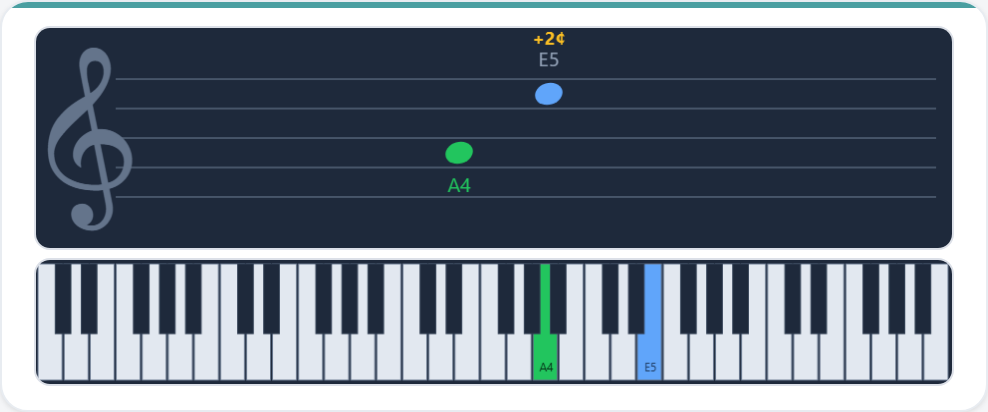
Singing HUD
The Singing HUD (heads-up display) is the central feedback panel. It shows:
- Current note name and octave
- Cents offset — numeric display of how many cents sharp (+) or flat (-) you are from the target
- Cents gauge — a needle gauge that moves left (flat) or right (sharp)
- Input level meter — shows your microphone input volume
When you are within the green zone for your current sensitivity level, the entire HUD glows green with an "In tune!" state.
The HUD also includes Record/Playback controls and an AI coaching feedback panel (see Recording & Feedback).
Tone playback
Play a reference tone in 13 timbres: sine, oboe, violin, piano, organ, trumpet, flute, and six vocal tones (male/female "oo," "ah," "ee"). Two playback modes: Hold (plays while pressed) and Sustain (toggles on/off).
Three voicing modes control which notes you hear:
- Just my note — plays only the target tone
- Chord without me — plays all chord tones except yours, so you sing the missing voice
- Full chord — plays every note including yours
Settings panel
In Advanced mode, the settings card (collapsible) provides controls for:
- Mode — Octave-agnostic (note only) vs absolute pitch matching.
- Temperament — JI (just intonation) or ET (equal temperament).
- Sensitivity — Four levels: Beginner, Intermediate, Advanced, Expert.
- Smoothing — Vibrato smoothing on/off.
- Snap chime — When enabled, a brief chime plays the moment your pitch enters the green zone, giving audio confirmation without watching the screen.
- Volume — Reference tone volume (0–100%). Adjustable in real time while tones are playing.
- A4 Tuning — Concert pitch reference (default 440 Hz). Adjustable from 415 Hz (baroque) to 466 Hz. Common values: 440 (standard), 442 (European orchestras), 415 (baroque pitch).
- Input — Microphone device selection. Useful when you have a USB mic or audio interface alongside a built-in mic.
- Output — Speaker/headphone output selection (Chrome and Edge only). Route reference tones to headphones while singing into a separate mic.
All settings persist across sessions.
Tone & Practice Tools
JI vs ET comparison
The Compare JI / ET button plays the current interval first in just intonation (2 seconds), pauses briefly, then plays it in equal temperament (2 seconds). This makes the acoustic difference between the two tuning systems immediately audible. A label shows which system is currently playing. Particularly striking on the Major 3rd, Minor 3rd, and Tritone where the gap is largest.
Drone mode
The Drone control provides a continuous background reference tone while you sing, eliminating the need to hold the tone button. Three settings:
- Off — No drone (default)
- Root — Plays the root note as a soft sine wave
- Root+5th — Plays the root and its pure perfect 5th (3:2 ratio), creating a richer harmonic bed
The drone automatically restarts when you change the reference note, octave, or A4 tuning.
Arpeggio speed
When playing chords (intervals with 2+ notes), the Arpeggio control staggers how the notes start:
- Off — All notes sound simultaneously (default)
- Fast — 0.3 seconds between each note
- Med — 0.6 seconds between each note
- Slow — 1.0 second between each note
Arpeggiation helps you hear each individual note in a chord before they blend together.
Extended chord types
Beyond the basic intervals and triads, the app includes a full range of chord types organized into three groups:
- Intervals (13) — Unison through Octave
- Chords (10) — Major, Minor, Dominant 7th, Major 7th, Minor 7th, Sus2, Sus4, Power chord, Diminished, Augmented
- Extended (6) — Major 6th, Minor 6th, Half-diminished 7th, Diminished 7th, Dominant 9th, Add9
All chord tones use pure JI ratios. The "Sing" dropdown lets you choose which voice in the chord to target.
How to Read the Visualizations
Beat circle (most important)
The beat circle is the single most useful tool in the app. It pulses at the beat frequency — the difference in Hz between your voice and the target pitch. This beat frequency is the same "wobbling" or "throbbing" you hear when two close pitches sound together.
- Red, fast pulsing — far from the target (high beat rate)
- Amber, slow pulsing — getting closer
- Green, still — in tune (less than 0.5 beats/sec). Shows "In tune!"
The circle also shows counter-phase rings that expand outward, making the beat pattern visible even in peripheral vision. As beats slow down, you'll also hear them slowing in the combined sound of your voice and the reference tone.
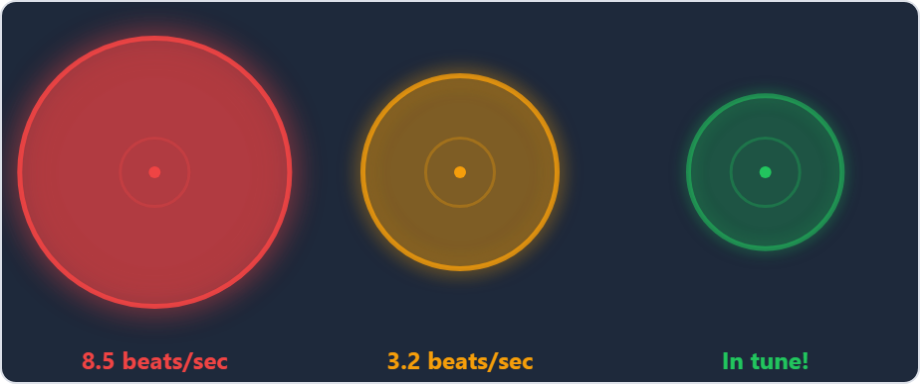
Train your ears, not your eyes. The beat circle is a bridge to develop your hearing. Start by watching the beats slow down. Over time, you'll learn to hear the beats directly and won't need the visual. That's the goal.
Cymatics mandala
A multi-layered geometric pattern with three concentric radial waveforms. When you are in tune, the pattern is symmetric and stable. As you drift, it rotates and distorts. Node dots at waveform peaks are connected by web lines, creating a mandala effect.
- Stable + symmetric = in tune (shows "Stable" label)
- Rotating + distorted = out of tune (shows "Unstable")
This is a beautiful way to visualize acoustic consonance, but the beat circle provides more precise feedback for tuning.
Pitch tracker
A scrolling line chart recording your pitch over time relative to the target (center line). Useful for seeing trends: do you approach from above or below? How stable is your pitch once you find the target? The tracker uses raw (unsmoothed) pitch values so it shows your actual voice behavior.
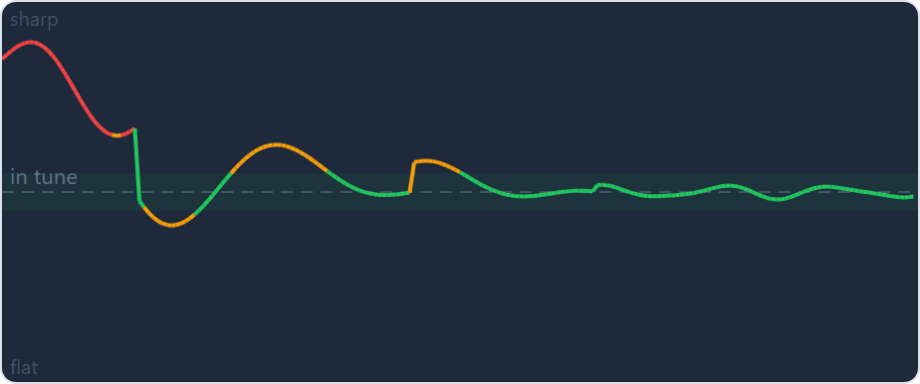
Fullscreen mode
Click the expand icon (⛶) next to the visualization tabs to enter fullscreen mode. The active visualization fills your entire screen — ideal for focused practice or when projecting for a class. Press the icon again or hit Escape to exit. The canvas automatically resizes to fill the available space.
Recording & AI Feedback
Recording a session
The Record button in the Singing HUD captures your pitch data (cents offset and timing) as you sing. A timer shows elapsed recording time. Click Stop to end the recording. There is no limit on recording length — the data is lightweight (pitch values only, no audio).
Playback
After recording, the Playback button becomes active. Click it to watch your session replayed on the Pitch Tracker visualization. The tracker automatically switches to view and the recorded pitch data scrolls across the display at the original speed. This lets you review your accuracy, spot patterns (consistently sharp/flat, approach direction), and track improvement across sessions.
AI coaching feedback
Below the recording controls, a coaching feedback panel provides real-time tips based on your singing patterns. The system analyzes a rolling window of your recent pitch data and provides context-specific advice:
- Sharp/flat bias — "You're trending sharp. Try relaxing your jaw..." or "You're trending flat. Engage more breath support..."
- Pitch instability — "Pitch is wavering. Focus on steady airflow..." or "Large pitch swings detected. Try humming first..."
- Near miss — "Almost there — small adjustments will lock it in."
- Excellent — "Excellent pitch! You're right in the zone."
Feedback updates every 4 seconds to avoid overload. It clears automatically when the microphone is turned off.
Training System
Curriculum overview
The guided training system contains 52 exercises: 13 intervals at 4 sensitivity levels each. Intervals are ordered from easiest to hardest:
| # | Interval | Levels |
|---|---|---|
| 1–4 | Unison | Beginner → Expert |
| 5–8 | Octave | Beginner → Expert |
| 9–12 | Perfect 5th | Beginner → Expert |
| 13–16 | Perfect 4th | Beginner → Expert |
| 17–20 | Major 3rd | Beginner → Expert |
| 21–24 | Minor 3rd | Beginner → Expert |
| 25–28 | Major 6th | Beginner → Expert |
| 29–32 | Minor 6th | Beginner → Expert |
| 33–36 | Major 2nd | Beginner → Expert |
| 37–40 | Minor 2nd | Beginner → Expert |
| 41–44 | Minor 7th | Beginner → Expert |
| 45–48 | Major 7th | Beginner → Expert |
| 49–52 | Tritone | Beginner → Expert |
Exercise flow
- Prep countdown — A 3-2-1 countdown plays the reference tone so you can hear the target before singing.
- Listening phase — Sing the target note. The hold bar fills as you stay in the green zone. A brief grace window (0.5s) forgives momentary pitch dips.
- Success — When the hold bar fills completely, you see "Well done!" and auto-advance to the next exercise after 2 seconds.
- Timeout — If 45 seconds pass without success, you get diagnostic feedback (see below) and can Retry or Skip.
Hold bar and stability indicator
The hold bar shows how long you've been continuously in the green zone. Required hold times increase with difficulty:
| Level | Hold time |
|---|---|
| Beginner | 2 seconds |
| Intermediate | 3 seconds |
| Advanced | 3 seconds |
| Expert | 4 seconds |
Below the hold bar, a stability indicator shows whether your pitch is "Steady" (green), "Wobbly" (amber), or "Unstable" (red). This helps you distinguish between wrong pitch and unsteady pitch.
Timeout diagnostics
If an exercise times out, the app analyzes your singing and provides targeted feedback:
- "No pitch detected" — Check that your microphone is working and picking up your voice.
- "Almost there! You needed to hold in tune a bit longer." — You were hitting the target but couldn't sustain it.
- "Your pitch was unsteady" — Try holding a more stable tone.
- "You were mostly sharp (+X cents)" — Adjust lower.
- "You were mostly flat (-X cents)" — Adjust higher.
Progress dashboard
The training card shows your stats: exercises completed, current streak, and session count. A mastery grid (13 intervals by 4 levels) shows your progress at a glance — completed dots are filled, the current exercise pulses, and remaining exercises are outlined.
All progress is saved to your browser's localStorage. You can reset progress from the training card if you want to start over.
Audio Concepts
What is a cent?
A cent is a unit for measuring musical intervals. There are 1200 cents in an octave and 100 cents in an equal-tempered semitone. Cents are logarithmic: going from 440 Hz to 441 Hz is about 3.9 cents, regardless of the starting frequency. The formula is: cents = 1200 × log2(f1 / f2).
What are beats?
When two pitches are close but not identical, you hear a periodic "wobbling" called beating. The beat rate equals the difference in Hz between the two frequencies. For example, if you sing 441 Hz against a 440 Hz reference, you hear 1 beat per second. As you get closer, the beats slow down. When the frequencies match exactly, the beats stop — that's pure, beatless intonation.
This is the key to just intonation. JI intervals are defined by ratios where the combined frequencies produce no beats. A pure 3:2 perfect 5th between 440 Hz and 660 Hz has zero beating. An equal-tempered 5th (659.26 Hz) produces about 0.74 beats per second — audible to a trained ear.
JI vs ET comparison
The following table shows all 13 intervals with their just intonation ratios, JI cents, equal temperament cents, and the difference. Positive difference means JI is sharper than ET; negative means JI is flatter.
| Interval | JI ratio | JI cents | ET cents | Difference |
|---|---|---|---|---|
| Unison | 1:1 | 0.0 | 0 | 0.0 |
| Minor 2nd | 16:15 | 111.7 | 100 | +11.7 |
| Major 2nd | 9:8 | 203.9 | 200 | +3.9 |
| Minor 3rd | 6:5 | 315.6 | 300 | +15.6 |
| Major 3rd | 5:4 | 386.3 | 400 | -13.7 |
| Perfect 4th | 4:3 | 498.0 | 500 | -2.0 |
| Tritone | 7:5 | 582.5 | 600 | -17.5 |
| Perfect 5th | 3:2 | 702.0 | 700 | +2.0 |
| Minor 6th | 8:5 | 813.7 | 800 | +13.7 |
| Major 6th | 5:3 | 884.4 | 900 | -15.6 |
| Minor 7th | 16:9 | 996.1 | 1000 | -3.9 |
| ↳ Harmonic 7th* | 7:4 | 968.8 | 1000 | -31.2 |
| Major 7th | 15:8 | 1088.3 | 1100 | -11.7 |
| Octave | 2:1 | 1200.0 | 1200 | 0.0 |
Notice the pattern. The intervals with the simplest ratios (octave 2:1, 5th 3:2, 4th 4:3) have the smallest ET differences. The more complex the ratio, the more ET compromises the tuning. The Major 3rd (-13.7 cents) is noticeably different from its pure version.
*Why two Minor 7ths? The melodic minor 7th (16:9) is the Pythagorean tuning — the complement of the major 2nd (9:8). This is what the app uses for the melodic m7 interval. The harmonic 7th (7:4, also called the septimal 7th) is a simpler ratio that appears naturally in the harmonic series and is used in chord contexts like dominant 7th and minor 7th chords, where its pure resonance against the root is what creates the characteristic sound.
Intervals and ratios
In just intonation, each interval is a frequency ratio. To find the target frequency, multiply the reference by the ratio. For example: A4 = 440 Hz, so a pure major 3rd above A4 = 440 × 5/4 = 550 Hz. An equal-tempered major 3rd would be 440 × 24/12 = 554.37 Hz — over 4 Hz sharper.
Tips for Singers
Getting started
- Wear headphones. This prevents the reference tone from bleeding into your microphone. It also lets you hear the beats between your voice and the reference more clearly.
- Use a simple vowel. "Oo" or "ah" produce the clearest fundamental pitch for the detector. Avoid consonants, vibrato, or breathy tone while learning.
- Set your voice range. Use the Lo/Mid/Hi toggle in the header to put the reference pitch in a comfortable part of your range. Don't strain.
Building accuracy
- Listen for the beats. As you adjust your pitch toward the target, the beating between your voice and the reference tone slows down. When it stops, you're in tune. This is the most reliable guide.
- Approach from both sides. Deliberately sing a bit sharp, then a bit flat, and feel how the beats speed up in each direction. This builds your awareness of the "center" — the beatless sweet spot.
- Use the reference tone. Playing the reference while you sing creates audible beats that you can learn to hear and control. This is much more effective than singing against silence.
- Start at Beginner sensitivity. The wide green zone (+/-25 cents) lets you experience success early. Tighten the threshold as your ear improves.
Common challenges
- Pitch wobbles — Try supporting your airflow. Sing gently and steadily rather than loudly. Check the stability indicator for feedback.
- Can't hear the beats — Make sure headphones are on and the reference tone is playing. Try the "Full chord" voicing mode so both your note and the reference sound together.
- Major 3rd feels flat — A just major 3rd (5:4) is 14 cents flatter than the piano version. It feels low at first, but listen — the beats disappear. Trust the stillness.
- Pitch detected incorrectly — Sing more clearly with a pure vowel. Avoid background noise. The detector works best with a clean, steady tone at moderate volume.
Sensitivity Level Guide
Sensitivity levels control how precise you need to be to register as "in tune" (green), "close" (amber), or "off" (red).
| Level | Green (in tune) | Amber (close) | Red (off) | Hold time |
|---|---|---|---|---|
| Beginner | ±25 cents | ±50 cents | Beyond 50 cents | 2s |
| Intermediate | ±10 cents | ±30 cents | Beyond 30 cents | 3s |
| Advanced | ±7 cents | ±20 cents | Beyond 20 cents | 3s |
| Expert | ±5 cents | ±15 cents | Beyond 15 cents | 4s |
Which level should you start at?
Start at Beginner. Even experienced singers may find the green zone surprisingly narrow at higher levels. Beginner (±25 cents) lets you build confidence and learn the interface. Move to Intermediate once you can consistently hit the green zone without much struggle. Advanced and Expert are for fine-tuning once your ear is well-trained.
In the training curriculum, you progress through all four levels for each interval before moving to the next. This ensures solid foundations before increasing difficulty.
FAQ
Which browsers are supported?
Any modern browser with Web Audio API support: Chrome, Firefox, Safari, Edge. Chrome typically gives the best performance. The app works on desktop, tablet, and phone.
Is my audio recorded or sent anywhere?
No. All audio processing happens locally in your browser. No audio data leaves your device. The app has no server-side component — it's entirely static files.
How are cents different from a piano tuner?
A standard tuner shows cents relative to the nearest equal-tempered note. This app shows cents relative to the just intonation target, which may differ from ET. For example, a just major 3rd (5:4) is at 386.3 cents — a piano tuner would show that as 14 cents flat of the ET major 3rd at 400 cents, but this app shows it as 0 cents (perfectly in tune for JI).
What's the difference between Note-only and Absolute mode?
Octave-agnostic (Note-only) mode matches your pitch to the target note regardless of which octave you sing in. This is the default and is most practical for training. Absolute mode requires you to match the exact octave — useful for exercises where octave precision matters.
The pitch detector isn't picking up my voice. What should I do?
- Make sure you've granted microphone permission (check your browser's address bar for the mic icon).
- Check that the correct microphone is selected in the Input dropdown in the Settings panel (or in your system audio settings).
- Sing at a moderate volume — very quiet or very loud signals can be harder to detect.
- Use a pure vowel ("ah" or "oo") without vibrato or breathiness.
- Reduce background noise. The detector works best with a clean signal.
Does it work on mobile?
Yes. The layout adapts to phone screens. However, some mobile browsers restrict Web Audio API until the user taps the screen, so you may need to tap once before audio features activate. Performance is best on recent devices.
Why does the tritone use 7:5 instead of 45:32?
There are multiple just intonation ratios for the tritone. This app uses 7:5 (the septimal tritone), which is a simpler ratio and produces a more clearly defined beating pattern. The 45:32 tuning is also historically valid but produces a more complex acoustic signature.
Where is my progress stored?
Training progress is saved in your browser's localStorage under the key ji-trainer-progress. It persists across sessions but is tied to this browser on this device. Clearing your browser data will erase it. You can also reset progress from within the training card.
Can I skip exercises?
Yes. If an exercise times out, a Skip button appears alongside Retry. Skipping moves you to the next exercise, though the skipped exercise won't be marked as completed in the mastery grid. You can also use Free mode to practice any interval at any time without the curriculum structure.
Can I install the app on my phone or tablet?
Yes. Intonation Lab is a Progressive Web App (PWA). On most devices, your browser will offer an "Add to Home Screen" or "Install" option. Once installed, the app launches in its own window, works offline for cached assets, and behaves like a native app.
Is there a free trial?
Yes. Click Try Free Demo on the login page to use the app with three intervals (Unison, Perfect 5th, Octave) — no access code required. The demo includes microphone input, tone playback, and all visualizations, with a 3-minute daily time limit. Recording/playback, AI coaching, and training are available with full access.
Does the app record my voice?
No. The Record feature captures only numerical pitch data (cents offset and timing) — no audio is recorded or stored. All data stays in your browser's memory and is discarded when you close the page.
How does the AI coaching work?
The coaching feedback analyzes a rolling window of your recent pitch samples entirely in your browser — no data is sent to any server. It detects patterns like sharp/flat bias, pitch instability, and near-misses, then provides targeted tips. It's rule-based analysis, not a cloud AI service.